How do I solve the "Unable to Connect To Server" error?
Introduction
The most common and effective way to transfer data between the RMS and the QCS is by importing and exporting files to our SFTP repository. You may be acquainted with FTP sites: these sites are locations on the internet where users can upload, download, and otherwise share files with other users. They are called FTP sites because FTP stands for File Transfer Protocol, the method by which files are transferred between a user's computer and to the FTP computer on the internet. Our repository behaves much the same way as FTP sites do on the internet. On our SFTP site you can upload, download, and otherwise share files with other users. However what is different is the protocol used. SFTP stands for Secure File Transfer Protocol and provides a layer of security that is not present with FTP sites. Information transferred between a SFTP site is encrypted and the site itself is protected from unwanted hackers. As a result, transferring files between the RMS and the QCS is slower and more exacting thus leading to a greater likelihood of failure. However, it is more important to err on the side of security and data protection than speed or ease of transfer.
One of the more common errors that a user will encounter when transferring files to our SFTP repository occurs when they cannot connect to the SFTP server. The error message will state "Unable to connect to Server". The error always occurs at the start of the file transfer and is almost always a problem with the internet firewall. Most corporations, for security reasons, will turn off access to FTP and SFTP sites as they allow for the transferring of information that a corporation may wish to keep out or keep in.
SFTP Repository IP Interformation
If your corporation's IT policy is to block access to SFTP sites you will have to ask them for a waiver for QCS. Once they reconfigure the corporate network routers and perhaps even your local firewall your QCS should be able to connect to our SFTP Repository on the internet. Here is the information your IT Group will need:
- Port: 22 for both input and output.
- Domain: rmssupport.com.
Testing Connectivity using TELNET
A simple test to determine if port 22 has been opened to our repository is to use an utility called TELNET that is provided with Windows. To use TELNET you will have to open a Command Prompt window. To open a Command Prompt window perform these steps:
- Click on your "Start" button in the lower left corner of your screen.
- Selecting "Run ..." option from the Start Menu.
- In the Run window enter the letters cmd in the text box.
- Click on the [OK] button to open the Command Prompt window.
Once you have performed these steps the Command Prompt window will open as shown below:
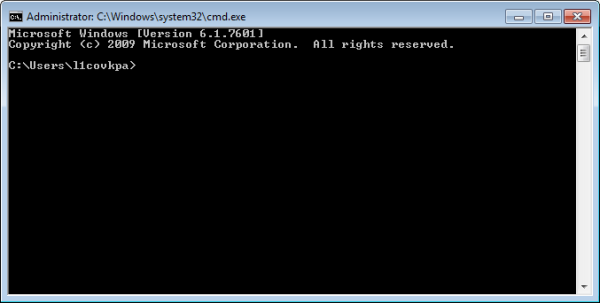
Once the Command Prompt window is open you will run the TELNET command by typing the following at the command prompt:
telnet sftp.rmssupport.com 22
If all is successful, the Command Prompt window will turn totally blank and will display the screen shot below:

If TELNET was not successful, the following line will be displayed on the command prompt:

Installing the TELNET Client
If you are running Windows 7 or Vista you may have to install TELNET. To do that you will need to use the Windows Programs and Features tool to install it. Follow these steps:
- Click "Start", and then click Control Panel.
- On the Control Panel Home page, click Programs and Features.
- In the Programs and Features tool, click "Turn Windows features On or Off" link in the upper left corner.
- If the User Account Control dialog box appears, confirm that the action it displays is what you want, and then click [Continue].
- In the Windows Features list, select Telnet Client, and then click [OK].